

Agent Lab
Explore, code, and export a Hedera AI Agent.
Agent Builder
Quick no-code configuration for your Hedera AI Agent.
Overview
Agent Lab is an interactive development environment within the Hedera Developer Portal for visually designing, building, and testing AI agents powered by the Hedera Agent Kit. It is accessible on the Hedera Portal under the Agent Lab tab.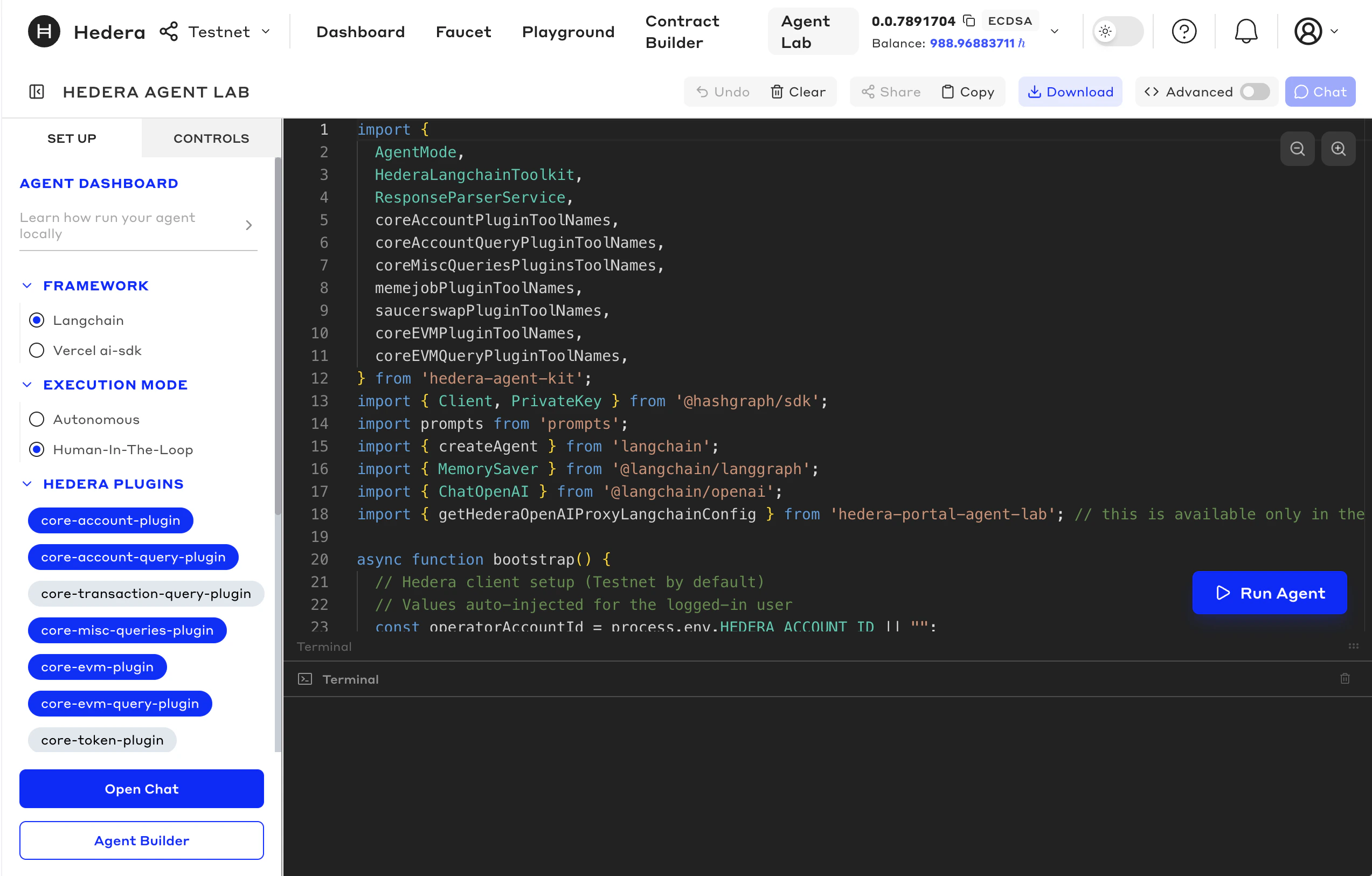
- Use the Agent Builder to configure your agent with no code.
- Low-Code Mode provides Agent Mode, Framework, and Plugin selection buttons that enable you to choose and configure the basics for your Hedera Agent as the code is built for you.
- The Advanced Mode toggle enables you to edit the code directly, with the help of an AI Assistant on the right-hand side.
- Run your agent in the terminal at the bottom of the screen, or interact with the Run Agent to get a preview of what your Hedera Agent will look like for end users.
The Three-Step Workflow
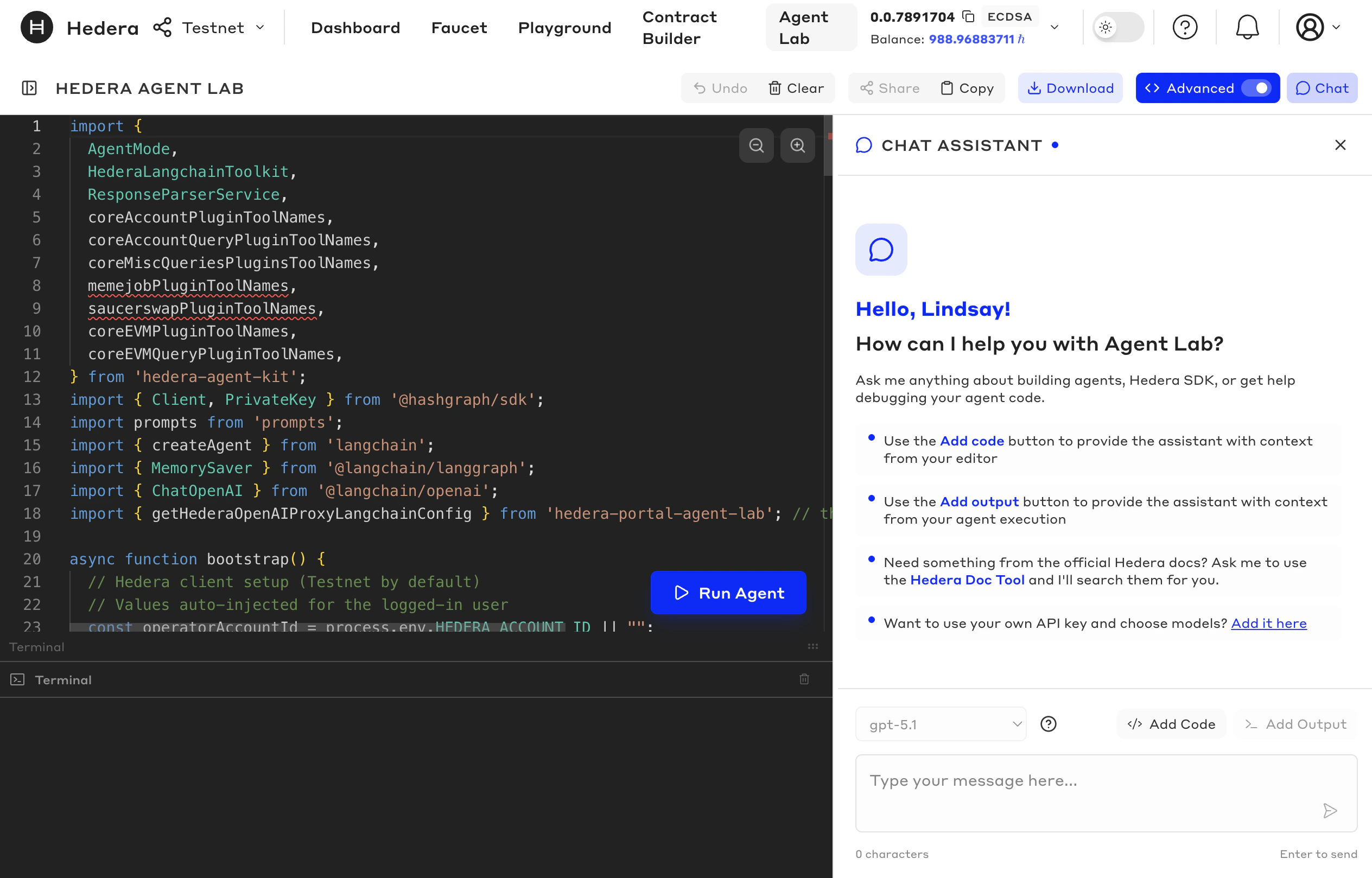
Agent Lab organizes agent development into three sequential steps: Build → Code → Run.
You can move between these steps at any time. Clicking Open Chat from the code view opens the Run interface; clicking Close Builder returns you to the code.
Quickstart
You can start directly with agent code by visiting the Hedera Portal and clicking on the Agent Lab tab, or use the button at the top of the page to start with the Agent Builder.There are two AI models at work in Agent Lab:
- The AI coding assistant (right panel in the code editor) helps you write and extend Hedera Agent Kit code.
- The agent you build is the Hedera AI agent that executes on-chain transactions when you interact with it when you run the agent, in the terminal.
Step 1: Build — Agent Builder Wizard
When you first open Agent Lab (or click Close Builder), a no-code wizard walks you through three configuration choices.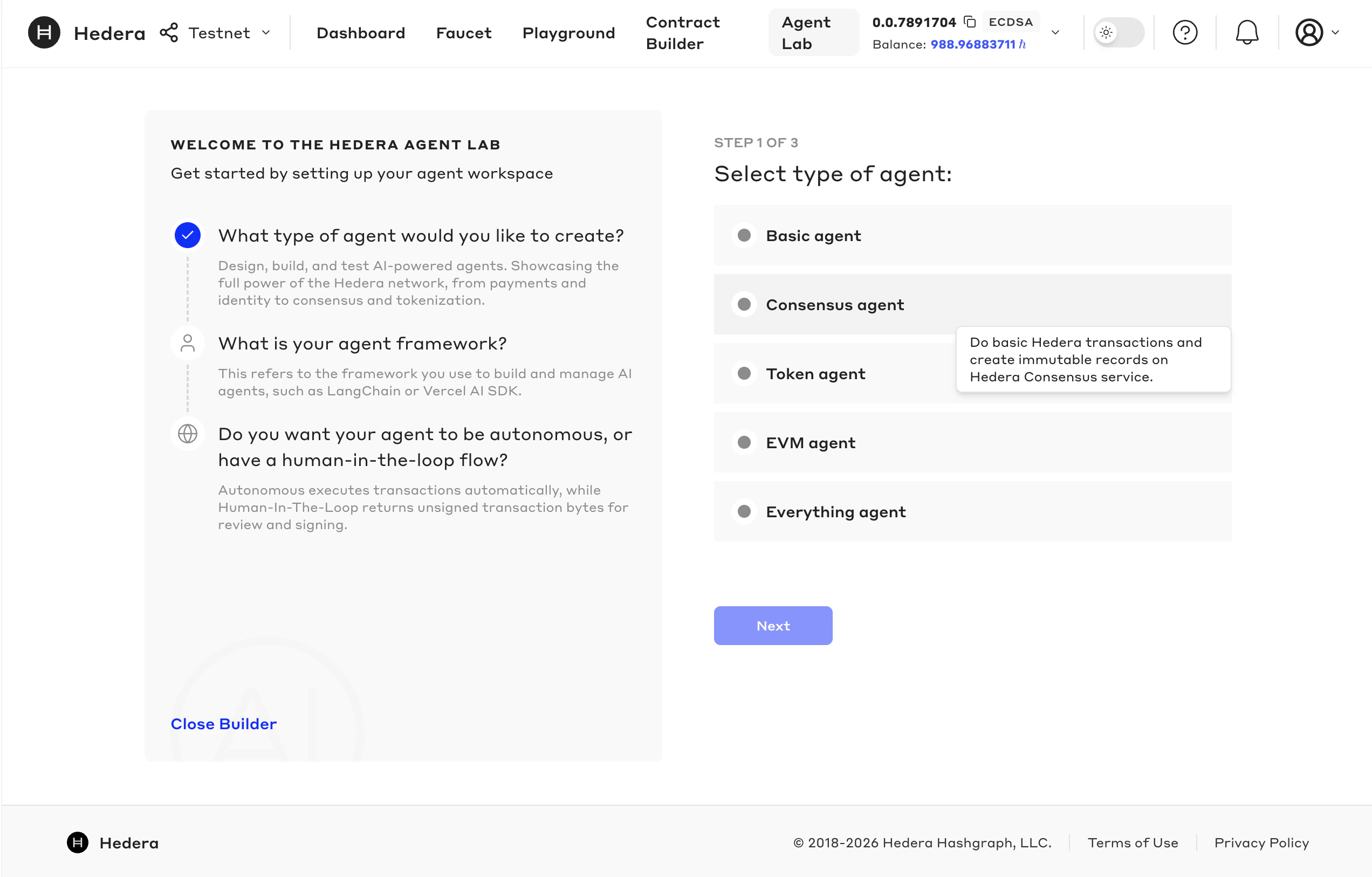
- Agent Type - Choose a basic template agent with different features and functionality
- Framework - Choose the framework you want to use for your agent to handle tools, execution, prompts & memory, and execution patterns.
- Agent Mode - Choose how your agent operates and interprets prompts Autonomous Mode or Human-in-the-Loop Mode. With human-in-the-loop mode, users will have to sign every transction before execution, and if you are building an agentic application, you will need to integrate with a wallet.
Step 2: Code — The Code Editor
The code editor is the central workspace in Agent Lab. It opens automatically after the wizard, or directly when you click the Agent Lab tab. Within the code editor, you can build your agent in different ways, chat with your agent when you run it in the terminal below, switch to Advanced Mode, switch to Chat and Agent Builder views, and Download your agent code.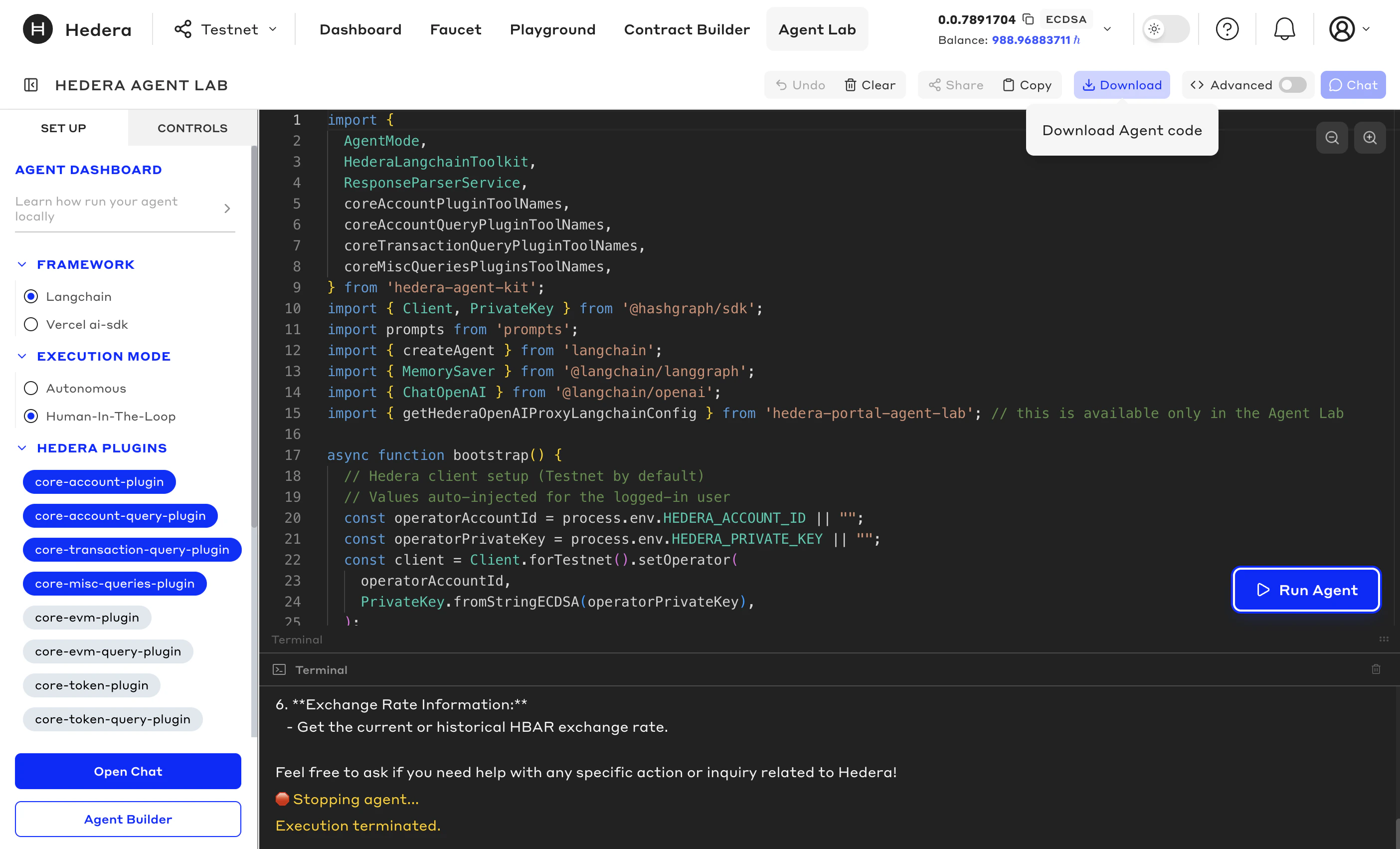
- Left sidebar — Toggle plugins, frameworks, and agent controls
- Center panel — The Monaco-based code editor (the same engine that powers VS Code) showing your generated TypeScript agent code
- Right panel — The AI coding assistant (available in Advanced Mode)
Block Mode and Advanced Mode
By default, the editor opens in Block Mode. You can switch to Advanced Mode using the toggle in the toolbar.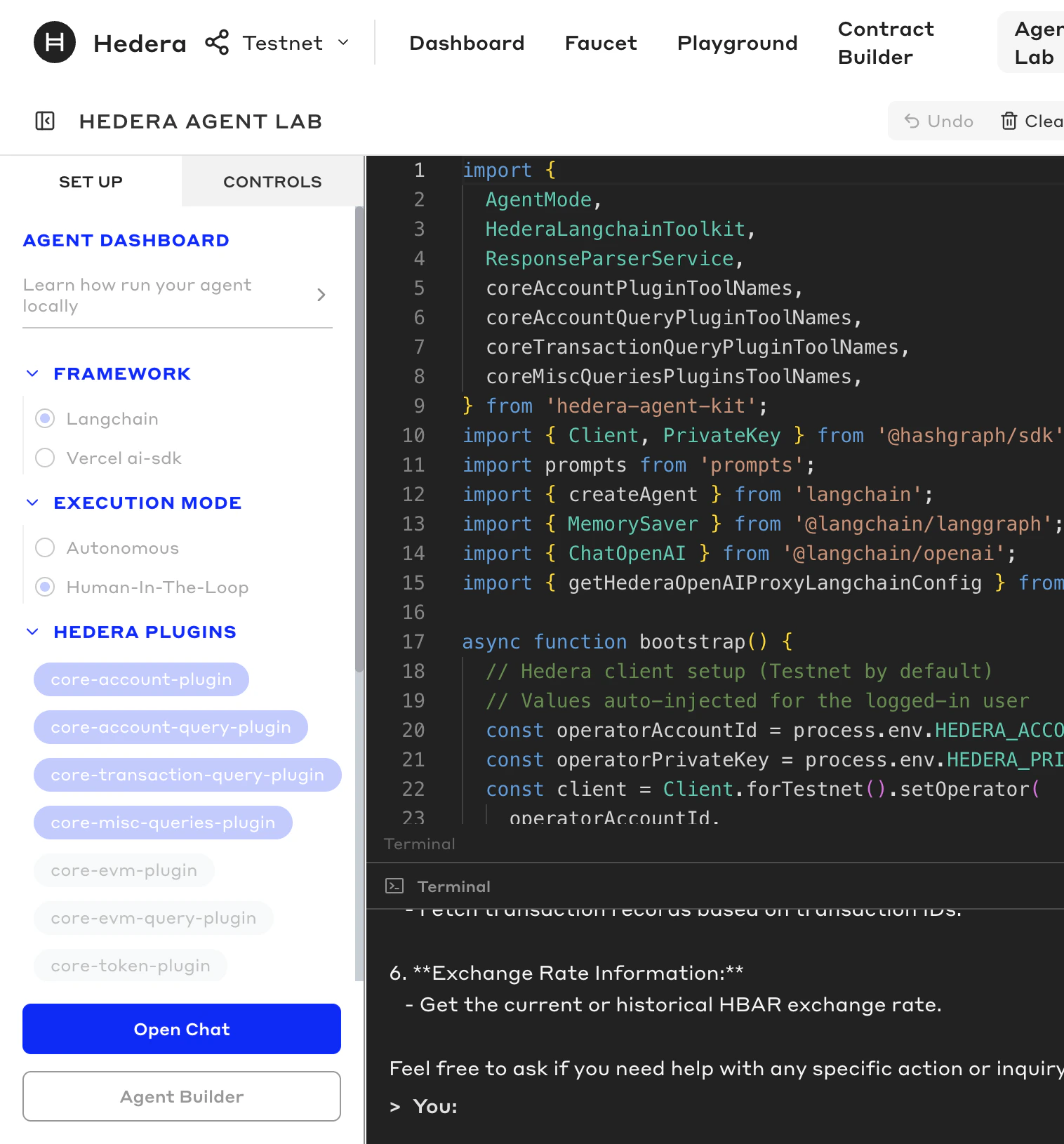
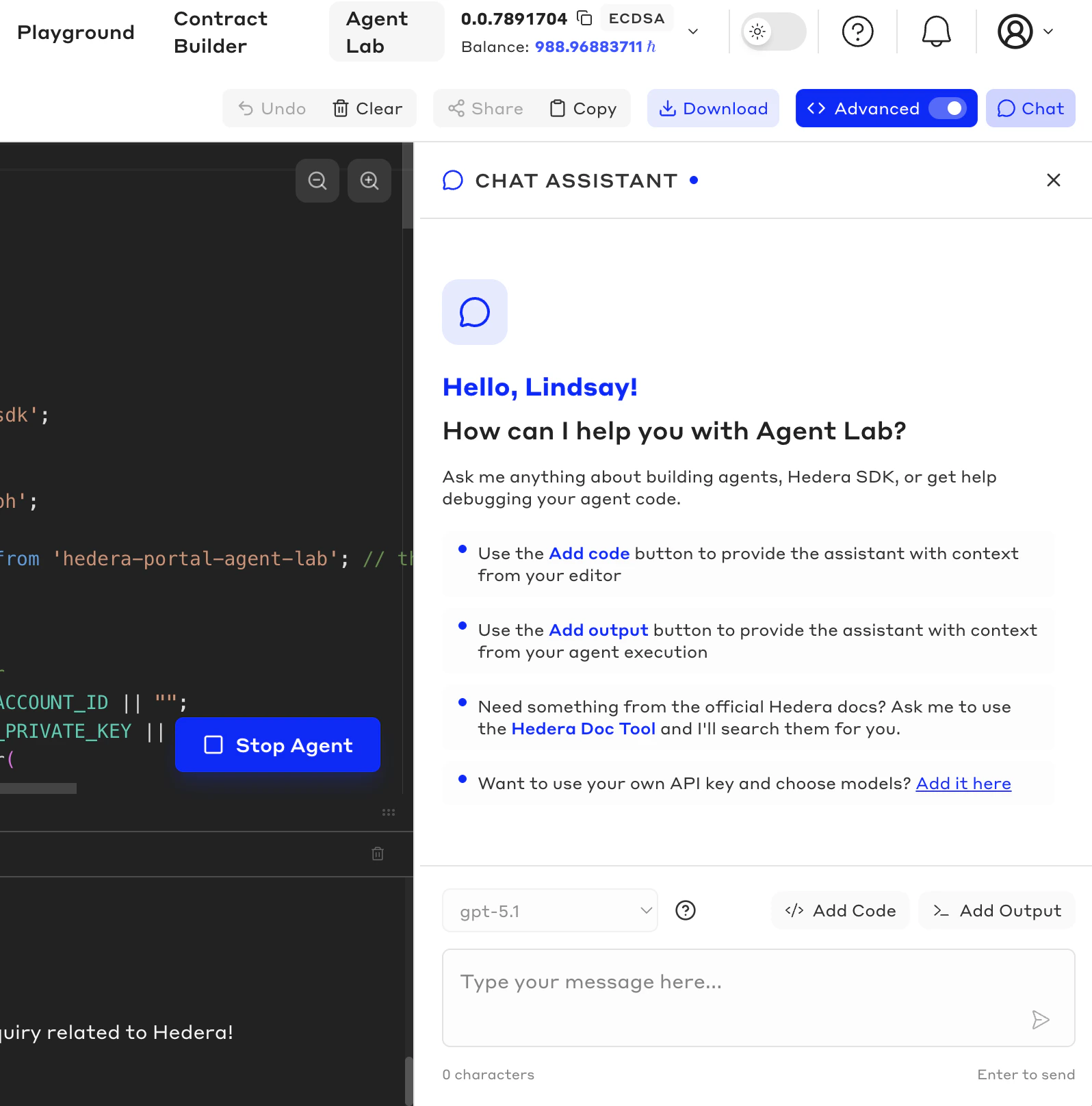
- The left-panel form controls will be hidden
- Manual code changes won’t sync back if you choose to switch back to Block Mode
Step 3: Chat — Agent Chat Interface
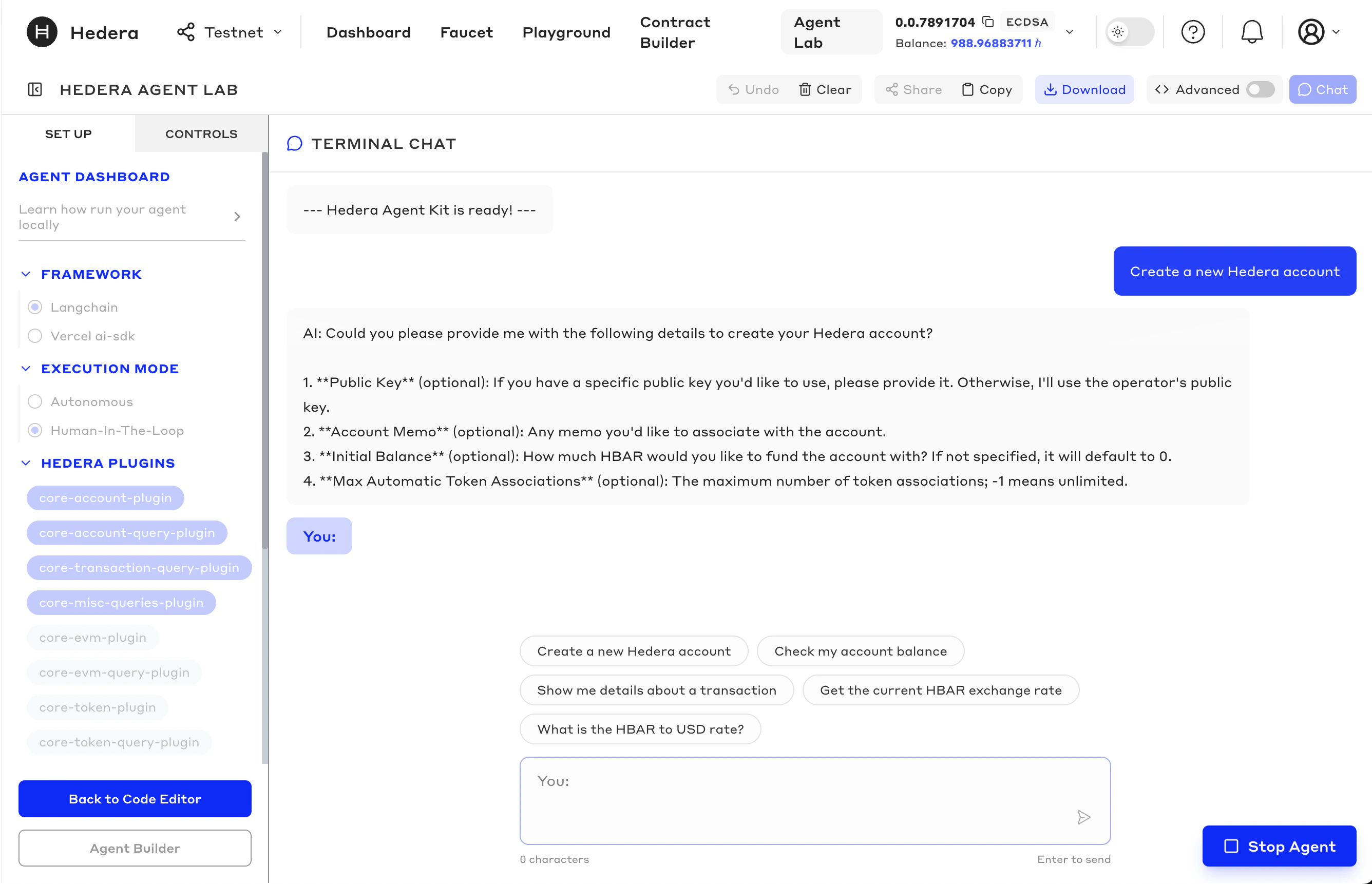
The Run view is the chat interface for interacting with the agent you built. It executes your agent code against Hedera Testnet in real time.Accessing the Chat View
- Click Open Chat in the left sidebar of the code editor
- If your code compiles cleanly, you’ll enter the chat interface directly
- If there is a runtime error in your code, a modal will appear before you enter the chat view
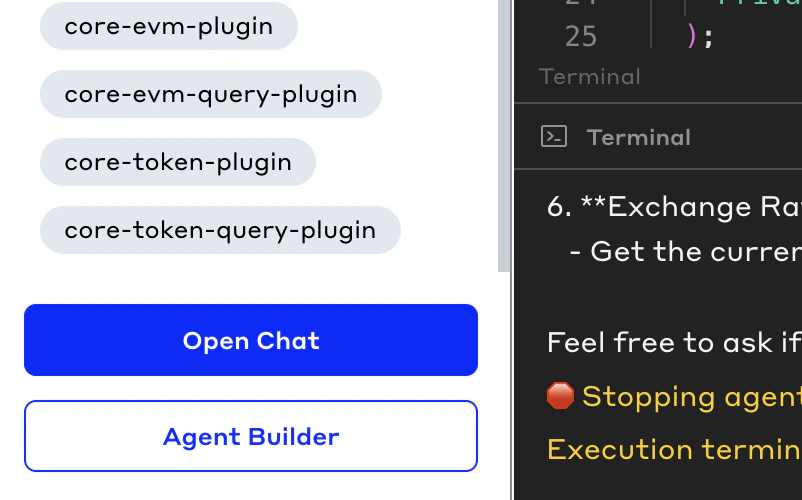
Chatting with Your Agent
The chat interface shows a greeting and a text input at the bottom. Type any natural language request to execute queries and transactions on Hedera Testnet:- “Create a new Hedera account”
- “Check my account balance”
- “Create a fungible token called MyToken”
- “Send 10 Hbar to account 0.0.123456”
Transaction Approval (Human-In-The-Loop Mode)
If your agent was configured in Human-In-The-Loop mode, transactions are returned as unsigned bytes rather than executed automatically. A Transaction Approval modal will appear showing:- Transaction ID
- Transaction type and details (e.g., recipient, amount, memo)
- Max fee
- Raw bytes (expandable)
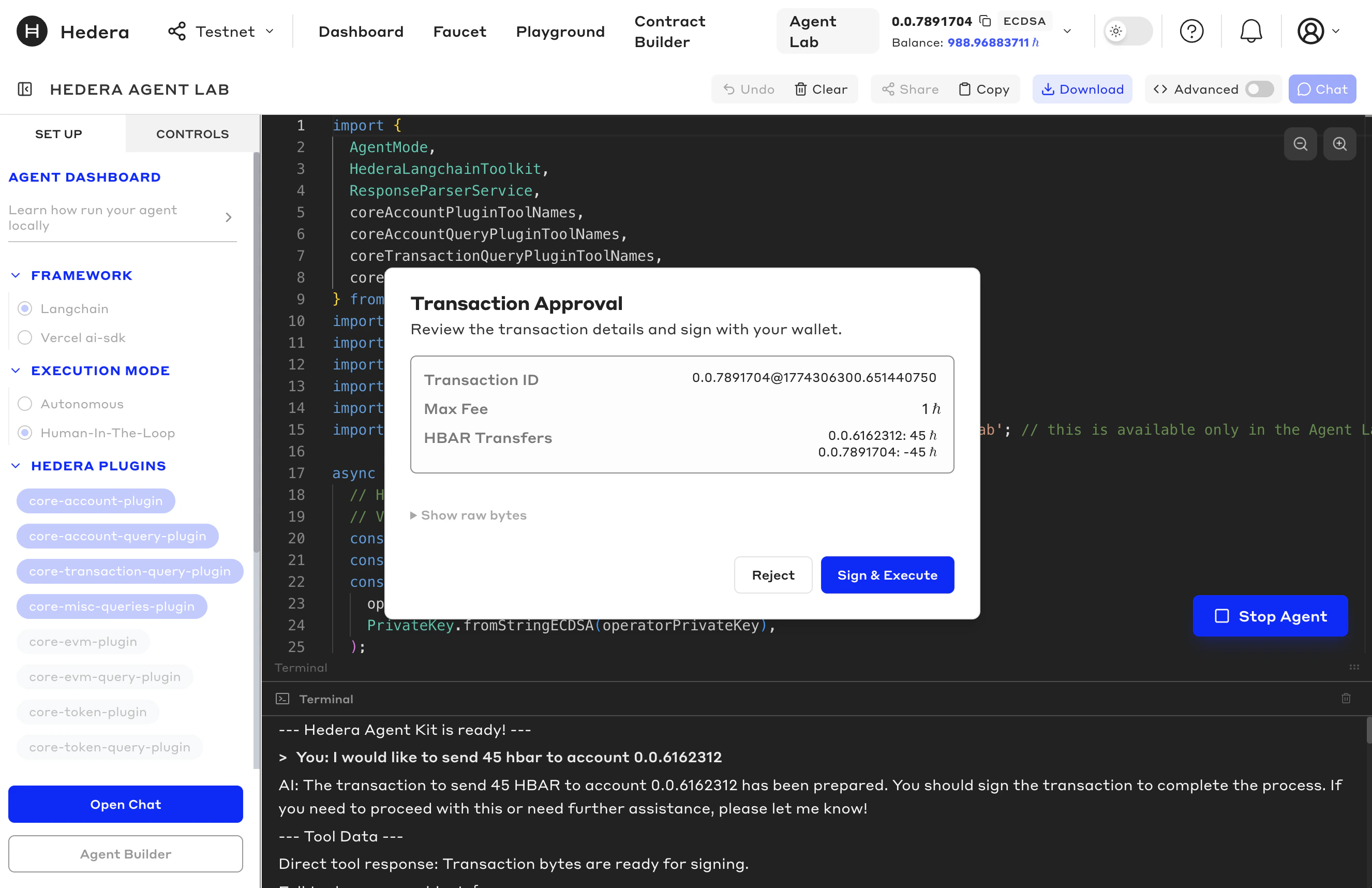
Step 4: Download and Test Your Agent
Once you are done prototyping, you can export your agent code to test it locally or integrate it into your own applications. When you’re ready to test your agent locally, click the Download button in the top right corner of the chat interface.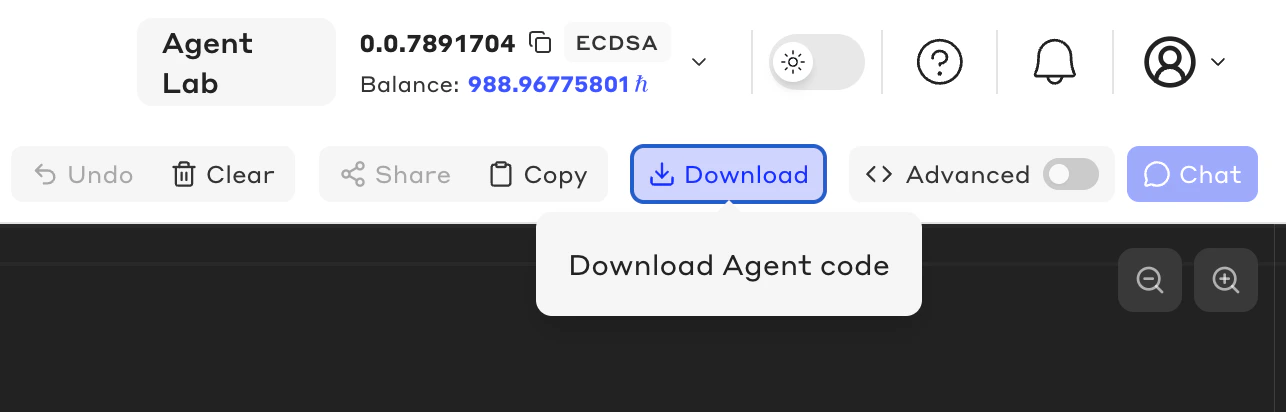
npm install and npm start to test your agent locally.
The README file in the downloaded package provides detailed instructions, and even provides information if you choose to try your agent out on Mainnet.
Agents exported from Advanced Mode will need additional configuration. Please follow the steps provided in the README.md you can find if the .zip export.