> ## Documentation Index
> Fetch the complete documentation index at: https://docs.hedera.com/llms.txt
> Use this file to discover all available pages before exploring further.
# Run Your Own Mirror Node with Google Cloud Storage (GCS)
## Prerequisites
* A [Google Cloud Platform ](https://cloud.google.com/)account.
* Basic understanding of Hedera Mirror Nodes.
* [Docker](https://www.docker.com/) (`>= v20.10.x)` installed and opened on your machine. Run `docker -v` in your terminal to check the version you have installed.
* [Java](https://www.java.com/en/) (openjdk\@17: Java version 17), [Gradle](https://gradle.org/install/) (the latest version), and [PostgreSQL](https://www.postgresql.org/) (the latest version) are installed on your machine.
## 1. Obtain Google Cloud Platform Requester Pay Information
In this step, you will generate your Google Cloud Platform HMAC access keys. These keys are needed to authenticate requests between your machine and Google Cloud Storage. They are similar to a username and password. Follow these steps to retrieve your **access key, secret**, and **project ID**:
* Create a new [project](https://cloud.google.com/resource-manager/docs/creating-managing-projects) and link your [billing account](https://cloud.google.com/billing/docs/how-to/manage-billing-account).
* From the left navigation bar, select **Cloud Storage > Settings.**
* Click the **Interoperability** tab and scroll down to the **User account HMAC** section.
* If you don't already have a default project set, set it now.
* Click **create keys** to generate access keys for your account.
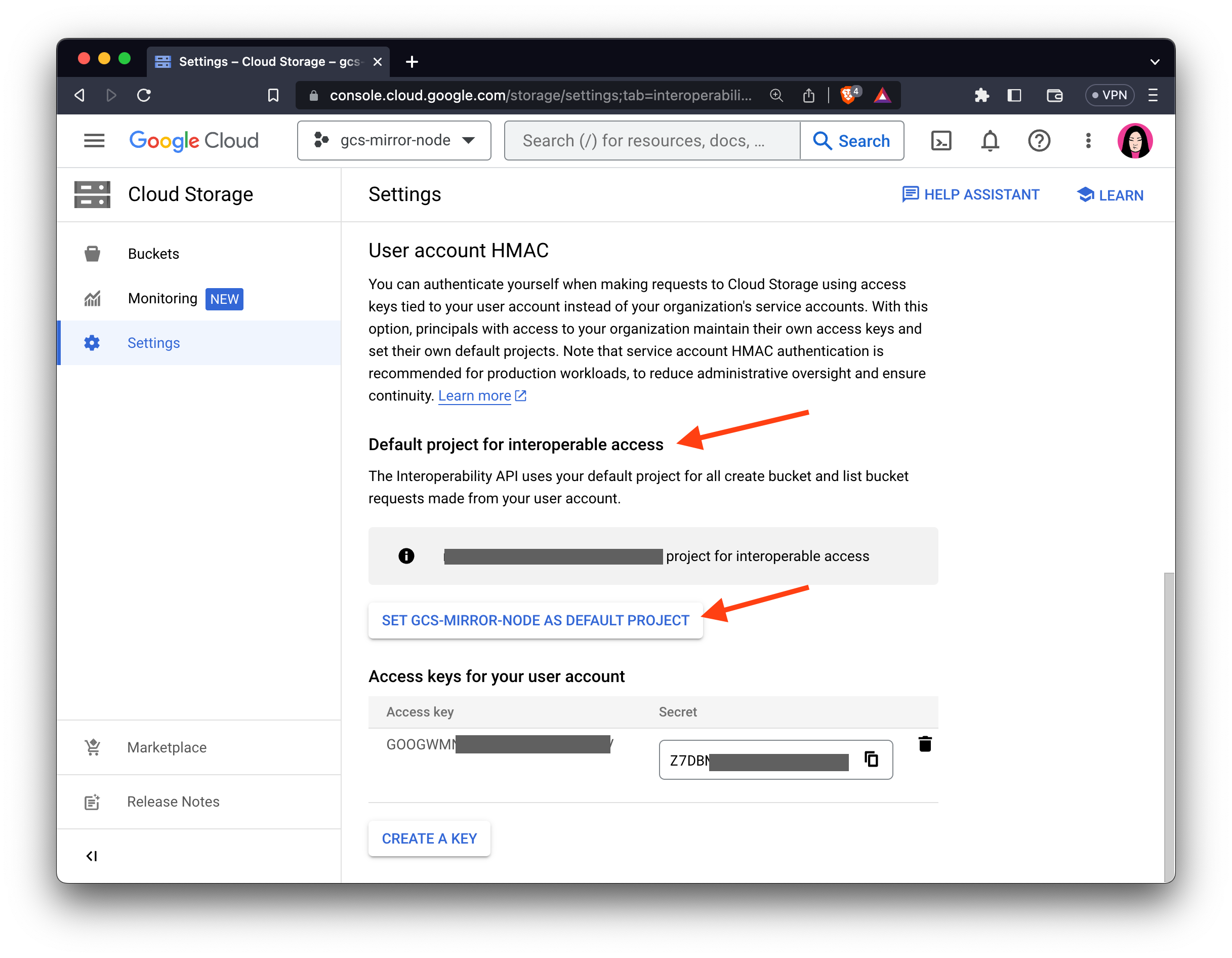 * You should see the **access key** and **secret** columns populate on the access keys table.
* You will use these keys to configure the **`application.yml`** file in a later step.
## 2. Clone Hedera Mirror Node Repository
* Open your terminal and run the following commands to clone the `hiero-mirror-node` [repository](https://github.com/hiero-ledger/hiero-mirror-node) then `cd` into the `hiero-mirror-node` folder:
```bash theme={null}
git clone https://github.com/hiero-ledger/hiero-mirror-node.git
cd hiero-mirror-node
```
## 3. Configure Mirror Node
The **`application.yml`** file is the main configuration file for the Hedera Mirror Node. We'll update that file with your GCP keys and the Hedera Network you want to mirror.
* Open the `application.yml` file in the root directory with a text editor of your choice.
* Find the following section and replace the placeholders with your actual GCP **access key**, **secret key**, **project ID**, and the network you want to mirror:
| Item | Description |
| ----------------- | ------------------------------------------------------- |
| **accessKey** | Your access key from your GCP account |
| **cloudProvider** | GCP |
| **secretKey** | Your secret key from your GCP account |
| **gcpProjectId** | Your GCP project ID |
| **network** | Enter the network you would to run your mirror node for |
```yaml application.yml theme={null}
hedera:
mirror:
importer:
downloader:
accessKey: ENTER ACCESS KEY HERE
cloudProvider: "GCP"
secretKey: ENTER SECRET KEY HERE
gcpProjectId: ENTER GCP PROJECT ID HERE
network: PREVIEWNET/TESTNET/MAINNET #Pick one network
```
* Save the changes and close the file.
## 4. Start Your Hedera Mirror Node
Now let's start the Hedera Mirror Node using Docker. Docker allows you to easily run applications in a self-contained environment called a *container*.
* From the `hedera-mirror-node` directory, run the following command:
```bash theme={null}
docker compose up -d db && docker logs hedera-mirror-node-db-1 --follow
```
## 5. Access Your Hedera Mirror Node Data
This step shows you how to access the data that your Hedera Mirror Node is collecting. The mirror node stores its data in a PostgreSQL database, and you're using Docker to connect to that database. To access the mirror node data, we'll have to enter the **`hiero-mirror-node-db-1`** container.
* Open a new terminal and run the following command to view the list of containers:
```bash theme={null}
docker ps
```
* Enter the following command to access the Docker container:
```bash theme={null}
docker exec -it hiero-mirror-node-db-1 bash
```
* Enter the following command to access the database:
```bash theme={null}
psql "dbname=mirror_node host=localhost user=mirror_node password=mirror_node_pass port=5432"
```
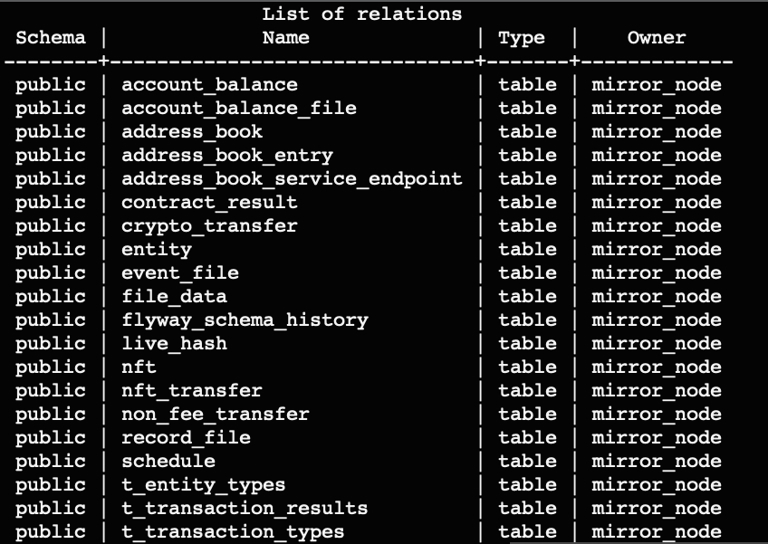
* Enter the following command to view the complete list of database tables:
```bash theme={null}
\dt
```
hedera\core-concepts\mirror-nodes\run-your-own-beta-mirror-node\run-your-own-mirror-node-gcs.mdx
* You should see the **access key** and **secret** columns populate on the access keys table.
* You will use these keys to configure the **`application.yml`** file in a later step.
## 2. Clone Hedera Mirror Node Repository
* Open your terminal and run the following commands to clone the `hiero-mirror-node` [repository](https://github.com/hiero-ledger/hiero-mirror-node) then `cd` into the `hiero-mirror-node` folder:
```bash theme={null}
git clone https://github.com/hiero-ledger/hiero-mirror-node.git
cd hiero-mirror-node
```
## 3. Configure Mirror Node
The **`application.yml`** file is the main configuration file for the Hedera Mirror Node. We'll update that file with your GCP keys and the Hedera Network you want to mirror.
* Open the `application.yml` file in the root directory with a text editor of your choice.
* Find the following section and replace the placeholders with your actual GCP **access key**, **secret key**, **project ID**, and the network you want to mirror:
| Item | Description |
| ----------------- | ------------------------------------------------------- |
| **accessKey** | Your access key from your GCP account |
| **cloudProvider** | GCP |
| **secretKey** | Your secret key from your GCP account |
| **gcpProjectId** | Your GCP project ID |
| **network** | Enter the network you would to run your mirror node for |
```yaml application.yml theme={null}
hedera:
mirror:
importer:
downloader:
accessKey: ENTER ACCESS KEY HERE
cloudProvider: "GCP"
secretKey: ENTER SECRET KEY HERE
gcpProjectId: ENTER GCP PROJECT ID HERE
network: PREVIEWNET/TESTNET/MAINNET #Pick one network
```
* Save the changes and close the file.
## 4. Start Your Hedera Mirror Node
Now let's start the Hedera Mirror Node using Docker. Docker allows you to easily run applications in a self-contained environment called a *container*.
* From the `hedera-mirror-node` directory, run the following command:
```bash theme={null}
docker compose up -d db && docker logs hedera-mirror-node-db-1 --follow
```
## 5. Access Your Hedera Mirror Node Data
This step shows you how to access the data that your Hedera Mirror Node is collecting. The mirror node stores its data in a PostgreSQL database, and you're using Docker to connect to that database. To access the mirror node data, we'll have to enter the **`hiero-mirror-node-db-1`** container.
* Open a new terminal and run the following command to view the list of containers:
```bash theme={null}
docker ps
```
* Enter the following command to access the Docker container:
```bash theme={null}
docker exec -it hiero-mirror-node-db-1 bash
```
* Enter the following command to access the database:
```bash theme={null}
psql "dbname=mirror_node host=localhost user=mirror_node password=mirror_node_pass port=5432"
```
* Enter the following command to view the complete list of database tables:
```bash theme={null}
\dt
```
hedera\core-concepts\mirror-nodes\run-your-own-beta-mirror-node\run-your-own-mirror-node-gcs.mdx
 * To exit the `psql` console, run the quit command:
```bash theme={null}
\q
```
* Lastly, run the following command to stop and remove the created containers:
```bash theme={null}
docker compose down
```
#### Congratulations! You have successfully run and deployed a Hedera Mirror Node with Google Cloud Storage (GCS) 🚀
* To exit the `psql` console, run the quit command:
```bash theme={null}
\q
```
* Lastly, run the following command to stop and remove the created containers:
```bash theme={null}
docker compose down
```
#### Congratulations! You have successfully run and deployed a Hedera Mirror Node with Google Cloud Storage (GCS) 🚀