> ## Documentation Index
> Fetch the complete documentation index at: https://docs.hedera.com/llms.txt
> Use this file to discover all available pages before exploring further.
# Run Your Mirror Node with Amazon Web Services S3 (AWS)
## Prerequisites
* An [Amazon Web Services](https://aws.amazon.com/free/?trk=ps_a131L0000085DvcQAE\&trkCampaign=acq_paid_search_brand\&sc_channel=ps\&sc_campaign=acquisition_US\&sc_publisher=google\&sc_category=core\&sc_country=US\&sc_geo=NAMER\&sc_outcome=acq\&sc_detail=aws%20account\&sc_content=Account_e\&sc_segment=432339156165\&sc_medium=ACQ-P|PS-GO|Brand|Desktop|SU|AWS|Core|US|EN|Text\&s_kwcid=AL!4422!3!432339156165!e!!g!!aws%20account\&ef_id=Cj0KCQjw8IaGBhCHARIsAGIRRYrLfWc3ykRf_hAUeVvf4nNEYvacHwk_w1jAuSj6hQZ8_muh0T5p3acaAkZDEALw_wcB:G:s\&s_kwcid=AL!4422!3!432339156165!e!!g!!aws%20account\&all-free-tier.sort-by=item.additionalFields.SortRank\&all-free-tier.sort-order=asc\&awsf.Free%20Tier%20Types=*all\&awsf.Free%20Tier%20Categories=*all) account.
* Basic understanding of Hedera Mirror Nodes.
* [Docker](https://www.docker.com/) (`>= v20.10.x)` installed and opened on your machine. Run `docker -v` in your terminal to check the version you have installed.
* [Java](https://www.java.com/en/) (openjdk\@17: Java version 17), [Gradle](https://gradle.org/install/) (the latest version), and [PostgreSQL](https://www.postgresql.org/) (the latest version) are installed on your machine.
## 1. Create an IAM user
This step will teach you how to create a new IAM (*Identity and Access Management)* user and generate new access keys in your AWS account. The **access key,** **secret** and **project ID** will be used to access S3 from the Hedera Mirror Node.
* Create an [IAM (Identity and Access Management) user](https://docs.aws.amazon.com/IAM/latest/UserGuide/getting-set-up.html#create-an-admin) with either an administrator or custom policy. If you're unfamiliar with using AWS, go with the administrator policy:
- Refer to AWS documentation to create an IAM user with an administrator policy [here](https://docs.aws.amazon.com/IAM/latest/UserGuide/getting-started_create-admin-group.html)
* This sets up an IAM user with Administrator Access Policy
* This user has full access and can delegate permissions to every service and resource in AWS.
- Once that is complete, select **Users** from the left IAM navigation bar
- Select the **Administrator** from the **User name** column
- Select the **Security credentials** tab
- Select **Create access key**
- Copy or download your **Access key ID** and **Secret access key**
* Enable access to billing data
* Follow step 2 [here](https://docs.aws.amazon.com/IAM/latest/UserGuide/getting-started_create-admin-group.html)
* From the IAM left navigation bar select **Polices**
* Click on **Create policy**
* Service
* Enter **S3** as your service
* Actions
* Access level
* Select **List** and **Read**
* Resources
* Select **Specify bucket resource ARN for the GetBucketLocation**
* Add ARN
* hedera-mainnet-streams
* Add ARN
* hedera-mainnet-streams/\*
* Click **Next:Tags**
* Click **Next: Review**
* Enter a name for the policy
* Click **Create policy**
* From the left navigation bar on the IAM console select **User** **Groups**
* Click **Create group**
* Enter a user group name
* Select the policy that was created in the previous step
* Click **Create Group**
* Click **Users** from the IAM console left navigation bar
* Click on **Add user**
* Enter username
* Select **Programmatic access for Access type**
* Click **Next: Permissions**
* Select the group that was created in the previous step
* Click **Next: Tags**
* Click **Next: Review**
* Click **Create user**
* Copy or download your **Access key ID** and **Secret access key**
## 2. Clone the Mirror Node Repository
* Open your terminal and run the following commands to clone the mirror node [repository](https://github.com/hiero-ledger/hiero-mirror-node), then `cd` into the `hiero-mirror-node` folder:
```bash highlight={1} theme={null}
git clone https://github.com/hiero-ledger/hiero-mirror-node.git
cd hiero-mirror-node
```
## 3. Configure Mirror Node
The `application.yml` file is the main configuration file for the Hiero Mirror Node. In this step, we will update the configuration file with your specific settings, such as your AWS access key, secret, and the Hedera network you want to mirror.
* Open the `application.yml` file in the root directory with a text editor of your choice.
* `cd` into the `hiero-mirror-node` directory from your terminal or IDE.
* Find the following fields and replace the placeholders with your actual AWS access key, secret key, project ID, and the network you want to mirror:
| Item | Description |
| ----------------- | ---------------------------------------- |
| **accessKey** | AWS access key |
| **cloudProvider** | s3 |
| **secretKey** | AWS secret key |
| **network** | Enter a network to run a mirror node for |
```yaml application.yml theme={null}
hedera:
mirror:
importer:
downloader:
accessKey: ENTER ACCESS KEY HERE
cloudProvider: "s3"
secretKey: ENTER SECRET KEY HERE
network: PREVIEWNET/TESTNET/MAINNET #Pick one network
```
## 4. Run Your Mirror Node
Start and run the Hedera Mirror Node using Docker. Docker packages development tools in a self-contained environment called a *container* that can include libraries, code, runtime, and more.
* From the mirror node directory, run the following command:
```bash theme={null}
docker compose up -d && docker logs hiero-mirror-node-importer-1 --follow
```
## 5. Access Your Mirror Node Data
After the mirror node is run successfully, it downloads data from the Hedera Network and stores it in a PostgreSQL database. To access the mirror node data, enter the database container and connect to it using Docker and the `psql` command-line tool.
* Open a new terminal and run the following command to view the list of containers:
```bash theme={null}
docker ps
```
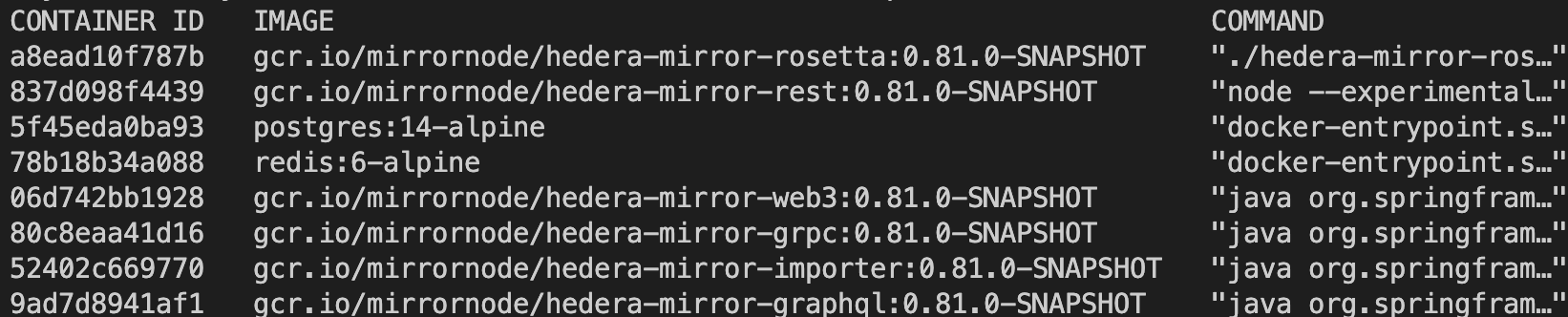 * Run the following command to enter the `hiero-mirror-node-db-1` container:
```bash theme={null}
docker exec -it hiero-mirror-node-db-1 bash
```
* Enter the following command to access and query the database:
```bash theme={null}
psql "dbname=mirror_node host=localhost user=mirror_node password=mirror_node_pass port=5432"
```
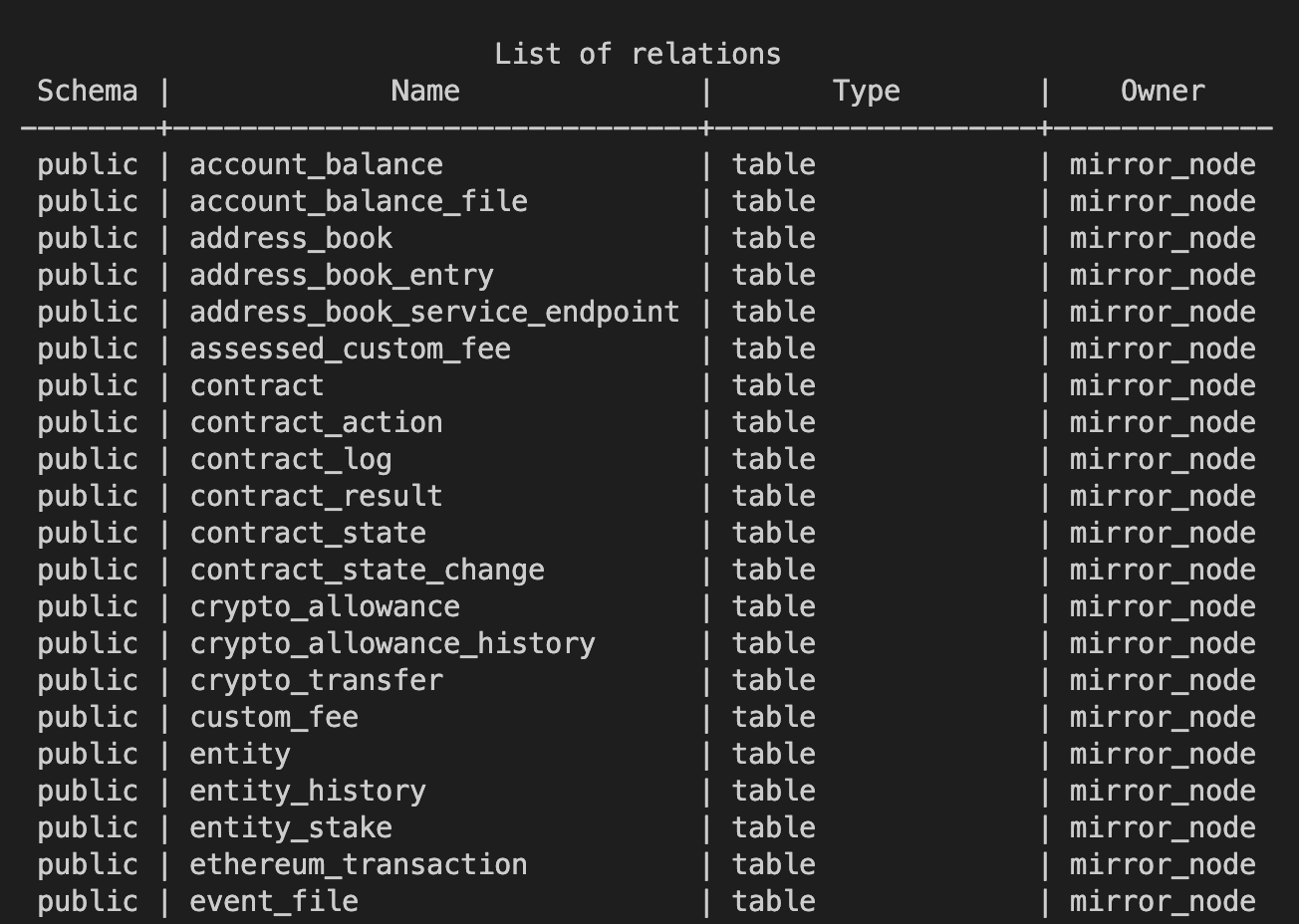
* Enter the following command to view the complete list of all the database tables:
```bash theme={null}
\dt
```
* Run the following command to enter the `hiero-mirror-node-db-1` container:
```bash theme={null}
docker exec -it hiero-mirror-node-db-1 bash
```
* Enter the following command to access and query the database:
```bash theme={null}
psql "dbname=mirror_node host=localhost user=mirror_node password=mirror_node_pass port=5432"
```
* Enter the following command to view the complete list of all the database tables:
```bash theme={null}
\dt
```
 * To exit the `psql` database console, run the quit command:
```bash theme={null}
\q
```
* Lastly, run the following command to stop Docker and remove the created containers:
```bash theme={null}
docker compose down
```
#### Congratulations! You have successfully run and deployed a Hedera Mirror Node with Amazon Web Services S3 (AWS) 🚀
* To exit the `psql` database console, run the quit command:
```bash theme={null}
\q
```
* Lastly, run the following command to stop Docker and remove the created containers:
```bash theme={null}
docker compose down
```
#### Congratulations! You have successfully run and deployed a Hedera Mirror Node with Amazon Web Services S3 (AWS) 🚀